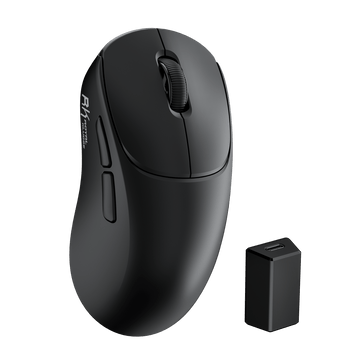
MG5 Wireless Gaming Mouse
$59.99
For RK Blog Readers Only
The built-in TFT screen is easily the best feature of the Royal Kludge S98, but uploading your own custom animations can feel a bit confusing if you don’t have the right link or file settings. Whether you want to display pixel-art animations, cute cat memes, or your favorite anime loops, the process is actually simple once you use the RK Web Driver.
A quick note: this guide uses the RK S98 for demonstration, but these steps are identical for any newer Royal Kludge keyboard that supports the RK Web Driver, such as the S104, or N80.

Open Google Chrome, Microsoft Edge, or Opera and head to the Official RK Web Driver. These browsers support the WebHID API, which allows the website to communicate directly with your keyboard hardware in a secure way.
Switch your keyboard to Wired Mode by toggling the switch on the back to OFF. Once connected via USB, click “Select Device” on the website and choose your S98 from the device list.

This is where most users run into issues. To ensure smooth playback, your GIF should be under 2MB and ideally sized around 240 × 240 pixels. Larger files may fail to upload or cause lag on the keyboard screen.
If your file is too large, you can quickly compress it using tools like iLoveIMG GIF Compressor.
Click the “TFT Setting” tab on the left side of the driver. Then select “Load Image”, choose your GIF file, and use the mouse wheel to scale or position it correctly.


Once everything looks right, click Confirm and then Save. The keyboard screen will briefly flicker while the animation is being written to the device.
Keyboard not showing up? Make sure the keyboard is in wired mode and properly connected via USB. For the most stable connection, it is recommended to use the original RK cable whenever possible.
Stuck at 0%? Your GIF is likely too large for the system to process. Try shrinking it below 1MB, then refresh the browser page and upload again.
If you enjoy keyboards with customizable TFT screens but are still deciding which Royal Kludge model fits your setup best, here are a few popular options worth considering for different layouts, desk styles, and everyday use cases.

A great all-rounder for users who want a balance between productivity and gaming. It keeps the numpad while still saving desk space, making it ideal for hybrid setups where you switch between work and play.
Best for:

Built for users who rely heavily on a full keyboard layout for work or data-heavy tasks. If you’re used to traditional full-size keyboards but still want TFT screen customization, this is the most familiar transition.
Best for:

A compact, modern option for users who prefer a smaller footprint without sacrificing customization features. It keeps things minimal while still offering the TFT display experience for GIFs and animations.
Best for:
If the upload keeps failing, the GIF file is usually too large or not compatible with the system. Some GIFs downloaded from the web contain too many frames or unsupported settings that the RK Launcher cannot process properly. Re-exporting the file in a smaller size (under 2MB) usually resolves the issue.
Most RK TFT keyboards perform best at a resolution of around 240 × 135. Using the correct size helps prevent black borders, stretched visuals, or blurry playback on the keyboard screen.
Yes. Anime reaction loops, pixel-art scenes, and simple animated clips are widely used for Royal Kludge keyboard customization. Short looping animations tend to display more smoothly and clearly on compact TFT screens.
Keyboard screens are much smaller than monitors or phones, so highly detailed animations often lose sharpness after resizing. GIFs with simple backgrounds and high contrast generally look much clearer on RK TFT displays.
Yes. Many Royal Kludge keyboards with built-in TFT displays support similar GIF customization features through the RK software or web driver system.
GIF lag is usually caused by animations with too many frames or overly complex visuals. Using shorter loops with smoother transitions helps improve performance and ensures stable playback on the keyboard screen.