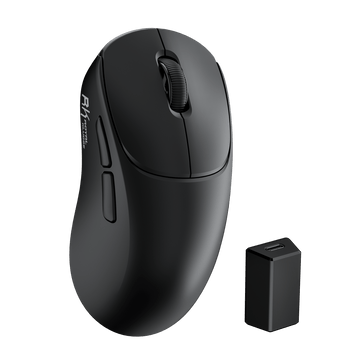
MG5 Wireless Gaming Mouse
$59.99
Hast du ein Konto?
Logge dich ein, damit es beim Checkout schneller geht.
For RK Blog Readers Only
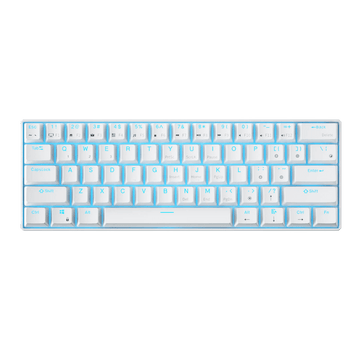
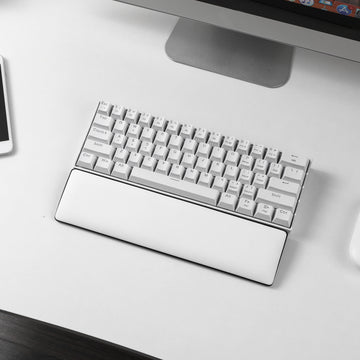
The Royal Kludge RK61 is celebrated for its ultra-compact 60% layout, maximizing your desktop space for gaming and clean aesthetics. However, cramming a full layout into just 61 keys means many essential functions—like your arrow keys, F-row, and question marks—share physical real estate.
Whether you just unboxed your keyboard, lost your original paper manual, or accidentally locked your keys, this master cheat sheet will help you unlock 100% of your RK61's capabilities instantly.

Before checking the shortcuts below, read this! The most common issue RK61 owners face is accidentally hitting Fn + Left Ctrl.
Doing this toggles the primary and secondary functions of your keys. If your top number row is suddenly typing F1-F12 instead of numbers, or your question mark key isn't working, simply press Fn + Left Ctrl again to instantly restore your default settings.
1. How do I enable and use the Arrow Keys?
Press Fn + Enter. This locks the bottom right cluster keys to act permanently as Arrow Keys. To type standard characters on those keys again, just press Fn + Enter again to disable them.
2. How do I type a Question Mark (?) on the RK61?
Make sure your arrow keys are disabled (via Fn+Enter). Then, press Shift + / ?. If arrow keys are active, you must press Fn + Right Shift + / ?.
The dual-mode RK61 allows you to pair and instantly switch between up to 3 wireless devices (Laptop, Phone, Tablet).
Toggle Wired Mode: If you ever want to switch back to a lag-free gaming cable setup, flip the back switch to OFF and plug in your USB-C cable.
Use these key combinations to adjust your keyboard lighting:
| Keys | Function |
|---|---|
| Fn + \| | Switch Backlight Mode |
| Fn + [ { | Backlight Brightness - |
| Fn + ] } | Backlight Brightness + |
| Fn + • > | Switch Backlight Mode (RGB only) |
| Fn + ' " | Backlight Speed + |
| Fn + ; : | Backlight Speed - |
| Keys | Function |
|---|---|
| Fn + Y | PrtSc |
| Fn + I | Pause |
| Fn + J | Home |
| Fn + N | Del |
| Fn + ,< | PgDn |
| Fn + U | ScrLK |
| Fn + H | Insert |
| Fn + K | PgUp |
| Fn + M | End |
| Fn + ←Back | Del |
| Keys | Function |
|---|---|
| Fn + Enter | Enable Arrow Keys |
| Fn + Enter (again) | Disable Arrow Keys |
Press Fn + A to switch to Windows mode. Press Fn + Left Ctrl to swap primary and secondary key functions.
| Keys | Function |
|---|---|
| Fn + 1–0, -, = | F1–F10 |
| Fn + F1 | Computer |
| Fn + F2 | Browser |
| Fn + F3 | Mailbox |
| Fn + F4 | Calculator |
| Fn + F5 | Player |
| Fn + F6 | Stop |
| Fn + F7 | Last Song |
| Fn + F8 | Play / Pause |
| Fn + F9 | Next Song |
| Fn + F10 | Mute |
| Fn + F11 | Volume - |
| Fn + F12 | Volume + |
Press Fn + S to switch to Mac mode. Press Fn + Left Ctrl to swap primary and secondary key functions.
| Keys | Function |
|---|---|
| Fn + F7 | Last Song |
| Fn + F8 | Play / Pause |
| Fn + F9 | Next Song |
| Fn + F10 | Mute |
| Fn + F11 | Volume - |
| Fn + F12 | Volume + |
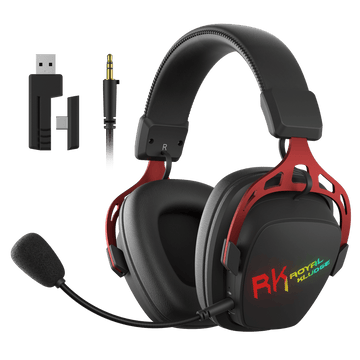
If you want to enhance your gaming experience or expand your setup, here are the official RK gear selected for RK61 owners:
RK MG5 Gaming Mouse

An ultra-lightweight, high-precision optical gaming mouse featuring a blazing-fast 8K Hz polling rate for near-zero latency, custom macro programmable buttons, and crisp mechanical switches. Engineered for seamless, elite-tier tracking in fast-paced FPS and MOBA games.
[ View MG5 Pricing & Availability ]
RK HG103 Gaming Headset

Immersive 7.1 virtual surround sound headset featuring a noise-canceling physical microphone and breathable memory foam earcups. Perfect for long, fatigue-free gaming or streaming sessions.
[ View HG103 Pricing & Availability ]
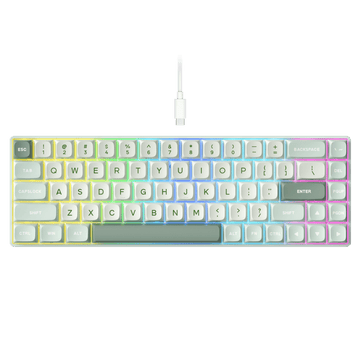
Tired of using the Fn combination layer for arrow keys or numeric pads? If your workflow has outgrown a 60% compact board, consider these two major step-up upgrades. If you want to explore more options and find the perfect match for your desk setup, [ Visit our Keyboard Comparison Page ] to check features, detailed specifications, and ideal use cases for all Royal Kludge models.
RK R75 (75% Gasket Layout)

The ultimate space-saver that doesn't sacrifice daily utility. Fully compatible with QMK/VIA open-source firmware for endless key remap customization, it packs dedicated arrow keys, a physical metal volume knob, and a premium 5-layer gasket mount configuration for that legendary out-of-the-box "creamy" typing sound.
[ Check RK R75 Specs & Deals ]
RK S104 (104-Key Full Size)

Built for productivity, coding, and casual data entry. It restores the complete dedicated Function Row (F1-F12), an independent Arrow Cluster, and a full Numpad area. Zero learning curve, absolute comfort.
[ Check RK S104 Specs & Deals ]
Still on the fence about your next upgrade? We want to help you make the right choice. Use the exclusive coupon code below at checkout on our official store to claim $10 OFF your first RK purchase.
Code: RKBLOG10
A: Press Fn + \ | (the key right under the Backspace/Delete key) to cycle through all the beautiful onboard lighting effects. If you have an RGB model, you can also press Fn + . > to change the solid color palette.
A: This depends on whether your arrow keys are currently active:
• If Arrow Keys are DISABLED: Simply press Left Shift + / ? or Right Shift + / ? just like a standard regular keyboard.
• If Arrow Keys are ENABLED: The slash key acts as the "Up Arrow," so you must press Fn + Right Shift + / ? to output the question mark.
A: Press Fn + Enter. This will permanently toggle the bottom-right cluster keys to act as dedicated Arrow Keys. To type standard characters on those keys again, simply press Fn + Enter once more to unlock them.
A: Turn off the power switch on the back, wait 5 seconds, and flip it back to ON. If it still refuses to connect, perform a master hardware reset: hold down Fn + Spacebar for 3 seconds until the backlight flashes. This completely clears any frozen Bluetooth pairing caches, allowing you to pair fresh.
A: The standard single-color black version of the RK61 comes equipped with a stunning, crisp vivid yellow backlight, offering a sleek amber/cyberpunk aesthetic right out of the box. (Note: RGB versions are also available if you prefer full-color customization).
A: A blinking red light under your spacebar is the Low Battery Warning. Plug in your USB-C cable immediately to juice it up. The red light will stay solid while charging and return to your normal lighting profile once fully charged.
A: Because the Escape key shares space with the tilde, use these quick shortcuts:
• To type a Backtick (`): Press Fn + Esc.
• To type a Tilde (~): Press Shift + Fn + Esc.
A: To avoid accidentally minimizing your game, press Fn + Win to lock the Windows key. To re-enable it for casual desktop navigation, simply press Fn + Win again.
A: Press and hold Fn + BackSpace. The number row keys from 1 to 0 will illuminate to act as a visual battery tank indicator. For example, if keys 1 through 7 light up, your keyboard is sitting comfortably at roughly 70% battery capacity.